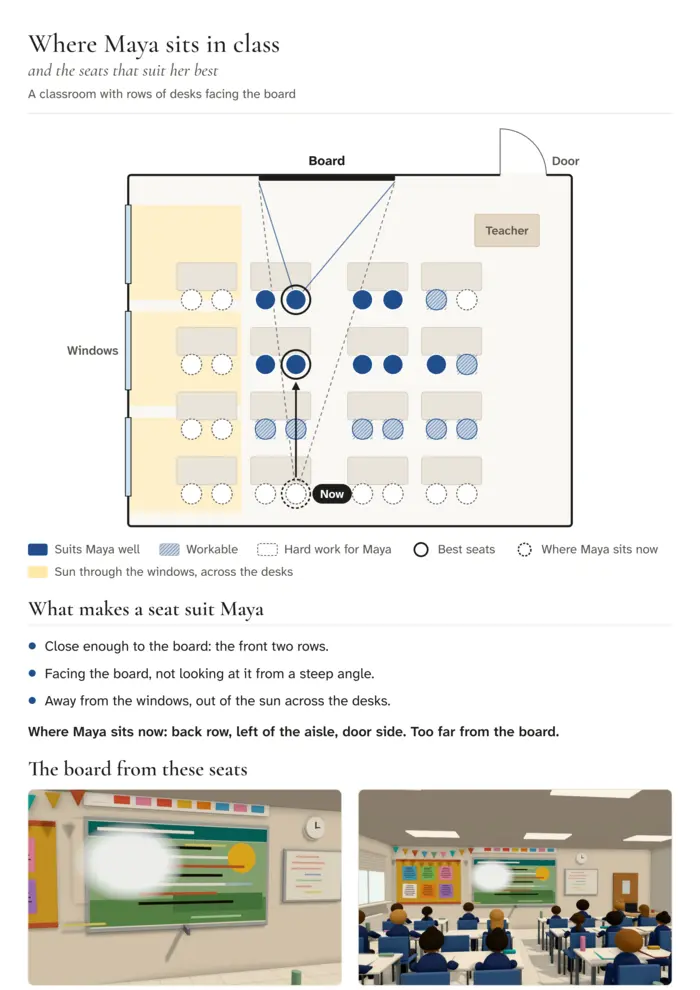
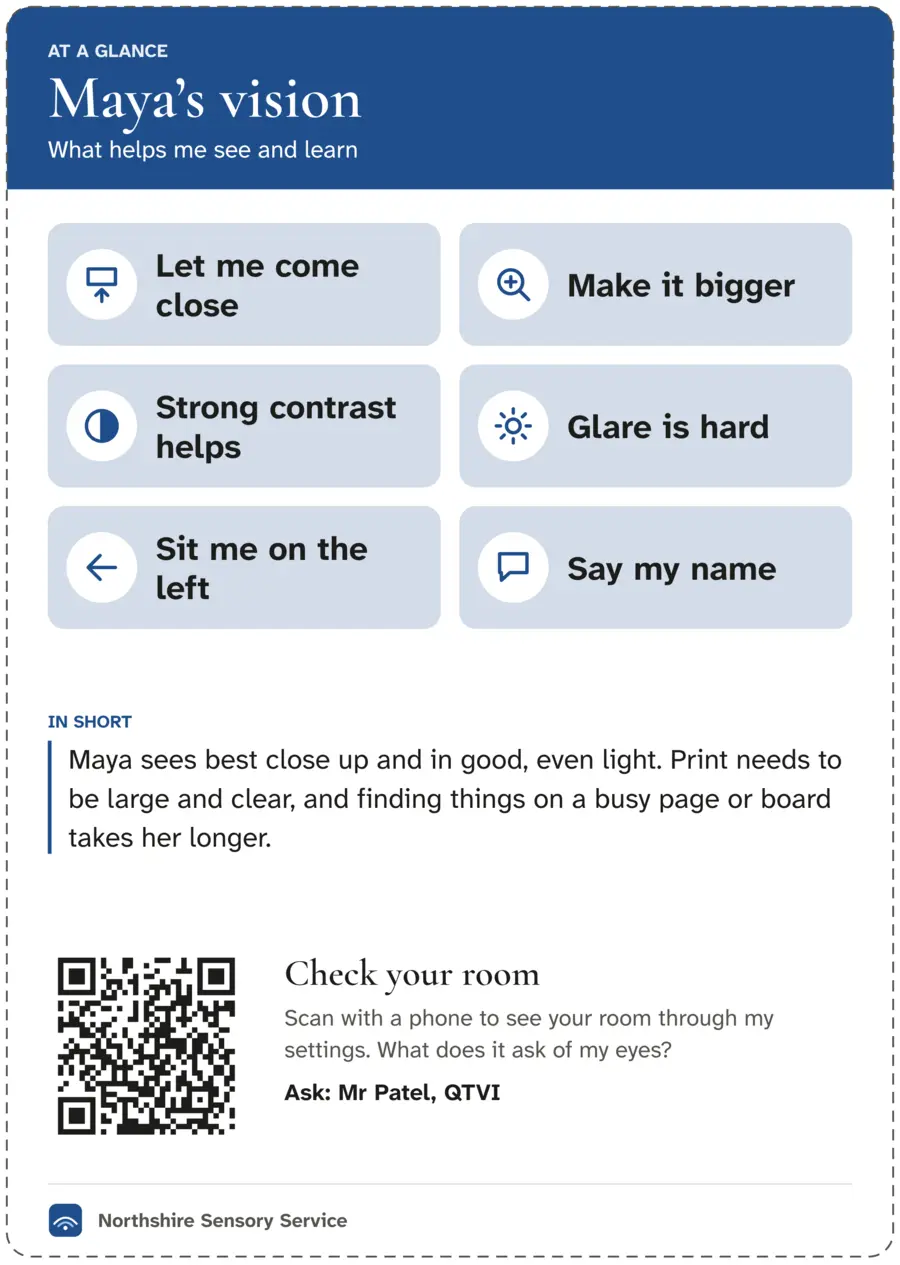
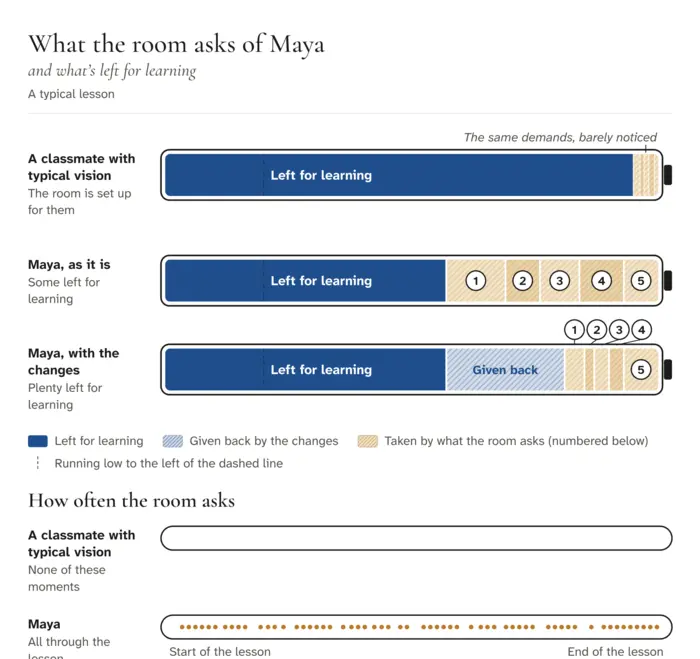
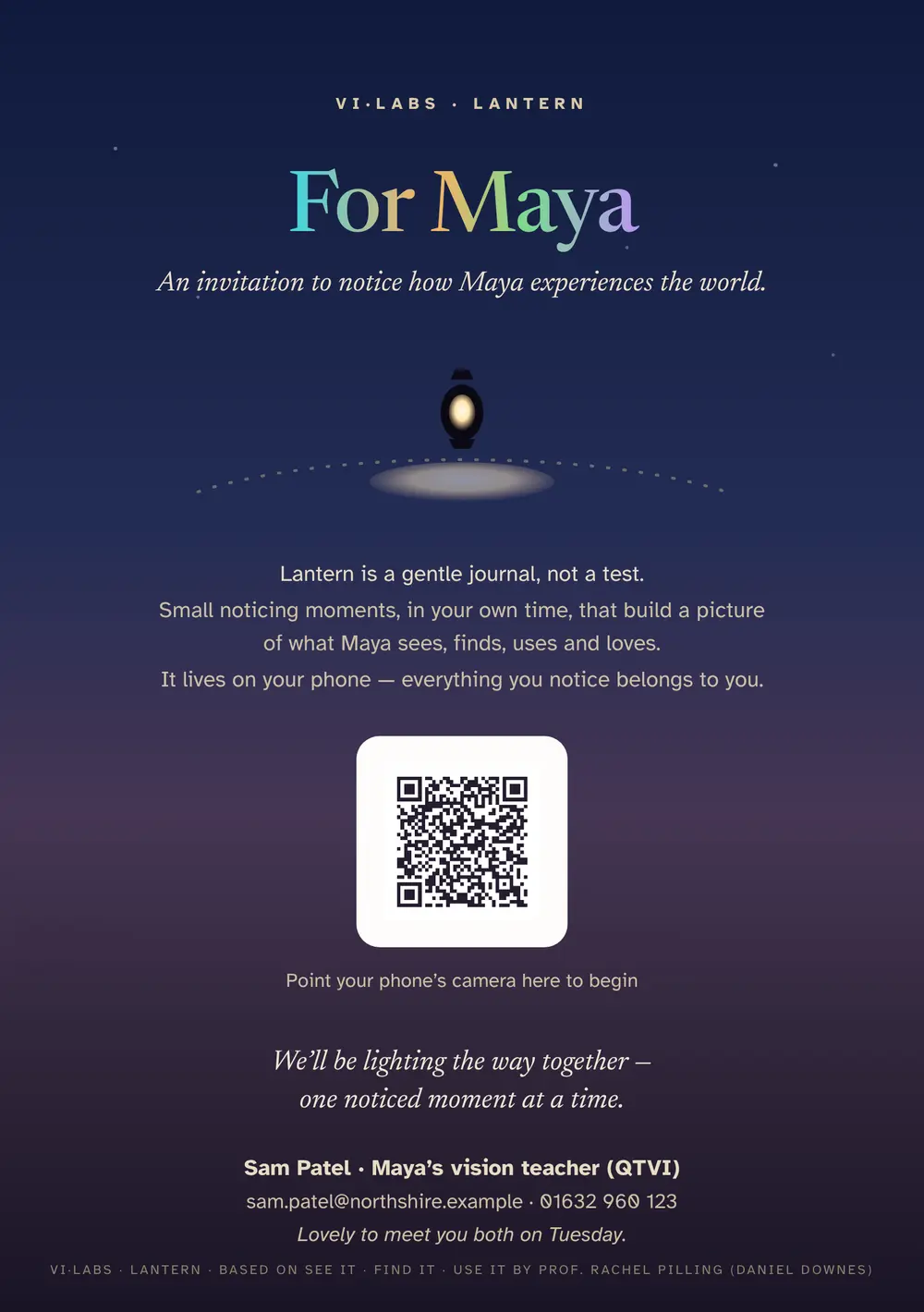
A QTVI’s notes from a visit to Maya’s class turn into what VI-Labs makes from them. “Back row by the door” becomes a seating plan for the report. “Glare on the board” becomes a card for the classroom wall. “Copying from the board is slow” becomes a figure of what the room asks. “Staff unsure” becomes a Vision in 5 invitation for the whole staff. “Mum keen to know more” becomes a Lantern invitation for the family. Maya’s name goes onto the report’s front cover.

>_ For qualified teachers of vision impairment

Less time formatting.More time with pupils.

You bring what you noticed. VI-Labs makes it into a report’s front page, figures you paste into Word, a card for the classroom wall and a staff course you can send to the whole school.

  • Nothing is sent to AI
  • Pupil details stay in your browser
  • Built by a practising QTVI
SpotlightLive training: press Next, and every phone in the room changes →

>_ What you send

From one visit, everything you send.

Each piece is made from what you saw, with your service’s logo and colour. It leaves as an image you paste into Word, or a page you print. Pick one to see what’s in it.

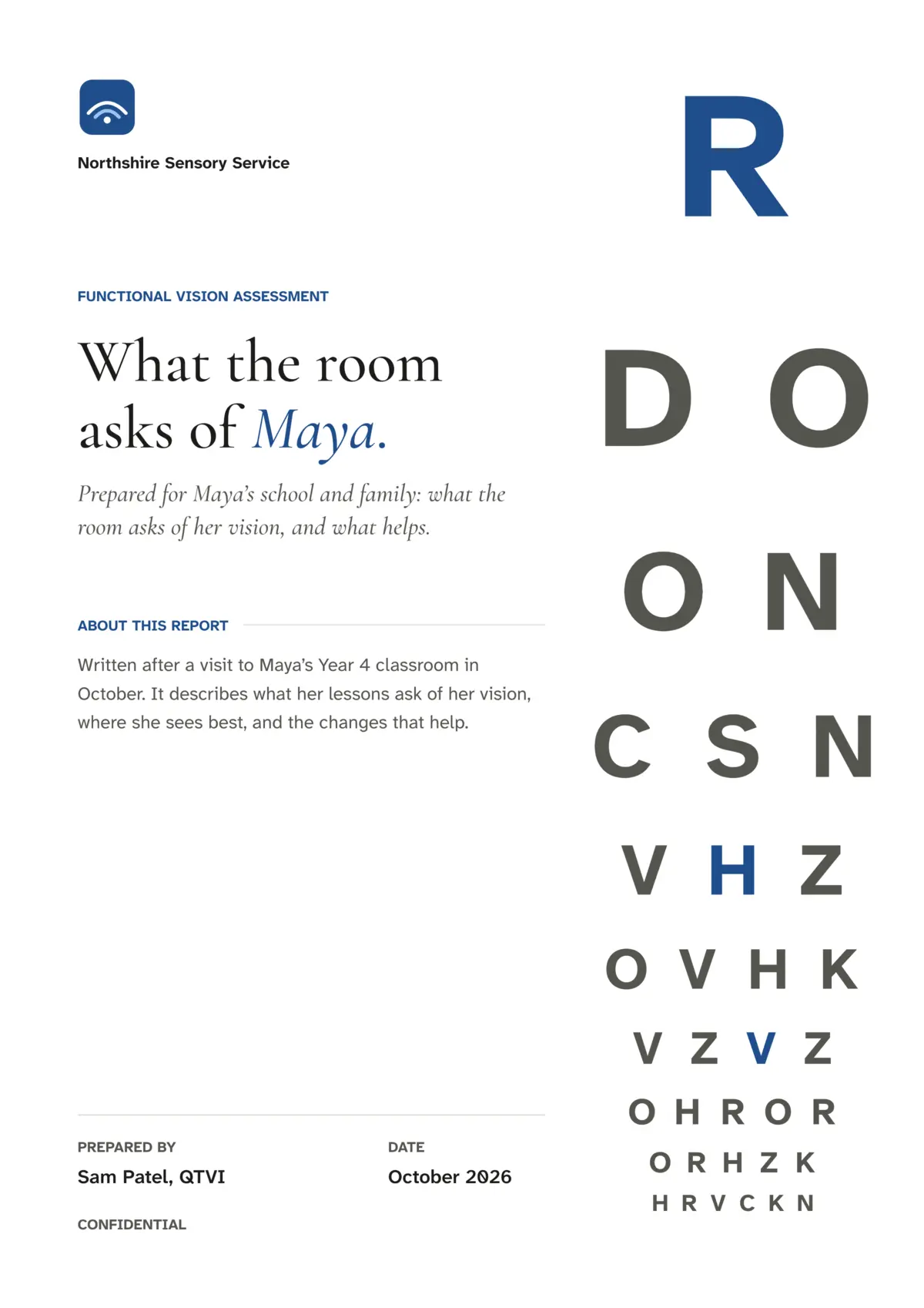
Report cover from Northshire Sensory Service: Functional vision assessment, What the room asks of Maya, a paragraph about the report, prepared by Sam Patel, QTVI, October 2026, confidential, with a letter chart down the right-hand side.

A4 · 210 × 297 mmShown whole

Pick n Mix · Cover

A front page for the report

The first page of a functional vision assessment or a monitoring report, in your service’s name and colour.

Size
A4, 2,400 × 3,396 pixels
Leaves as
An image to paste over page one of your Word template
The template
A Word file in your service’s name and colour, with its fonts built in
The pupil
First name only. Held while the page is open, never stored

Made for a made-up pupil, Maya, and a made-up service.
Spotlight>_ Live training

Press Next, and every phone in the room changes.

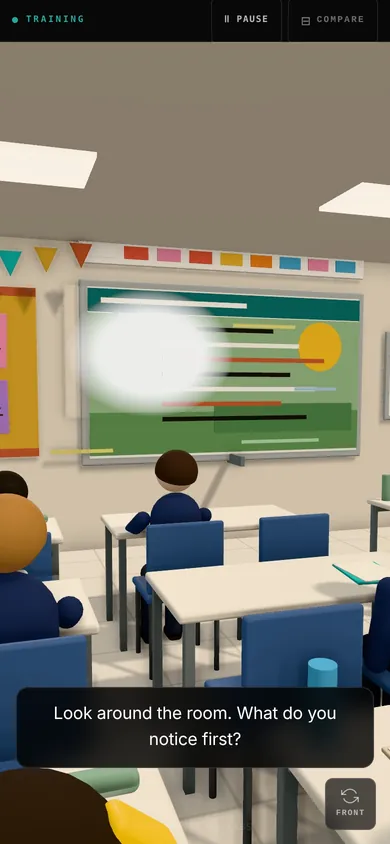
Run a staff session where everyone looks at the room they are sitting in, through the conditions you choose. Staff scan a QR code on your slide: no app, no login, no names. You step through from your phone, every phone follows at once, and each step puts a question to the room. Try it: press Next.

LIVE24 phones

1The room as it is

No conditions

“Look around the room. What do you notice first?”

JUMP TO STEP

Your phone

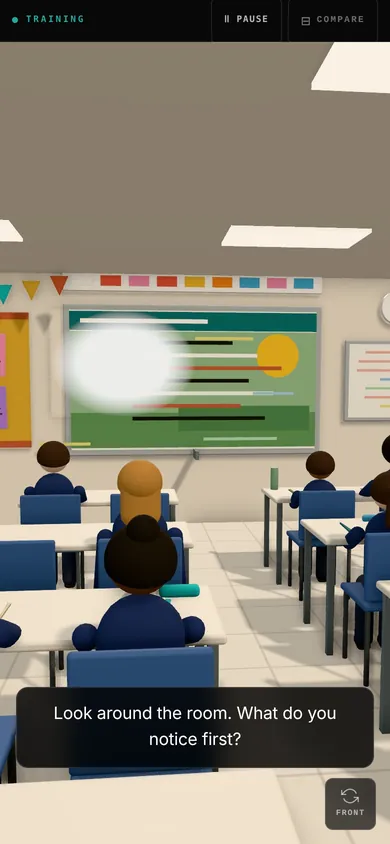
  • Third row, by the window. The classroom as the camera sees it, the sun glaring off the board. On screen: “Look around the room. What do you notice first?”
    Third row, by the window
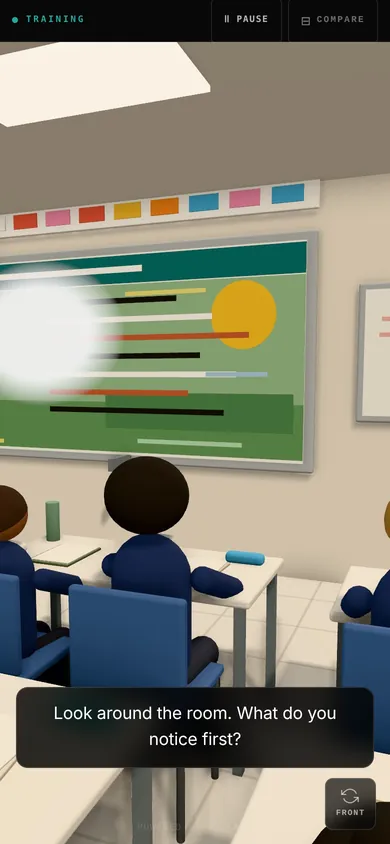
  • Back row, left of the aisle. The classroom as the camera sees it, the sun glaring off the board. On screen: “Look around the room. What do you notice first?”
    Back row, left of the aisle
  • Second row, by the door. The classroom as the camera sees it, the sun glaring off the board. On screen: “Look around the room. What do you notice first?”
    Second row, by the door

Their phones

Step 1 of 6, The room as it is. On every phone: the classroom as the camera sees it, the sun glaring off the board. The question on every screen: “Look around the room. What do you notice first?”

A sample session. Each phone shows the participants’ screen at that step, with Vision in 5’s classroom standing in for the phone’s camera.

  1. Build a playlist

    Choose the steps: detail at a distance, contrast, side vision, the middle of the view, bright light, each at the strength you set. Give every step a question for the room.

  2. Put the QR code on a slide

    Download it days before. Staff scan it as they sit down, and the page checks each camera works while they wait for you to start.

  3. Step through together

    One tap on Next changes every phone. Latecomers join at the step you are on, a phone that locks catches up when it wakes, and if your own page reloads it goes straight back into the session.

  • No app to install
  • No login or names for staff
  • Any phone with a camera
  • The picture stays on each phone
  • Works with a presentation clicker

>_ What you show

Show a teacher what the room asks, then change it together.

Open a classroom, a library, a dining hall or a corridor at changeover. Make the changes a school can make, one at a time: blinds down, a clear board, a seat at the front. The room shows each change, and counts what it asks as it falls.

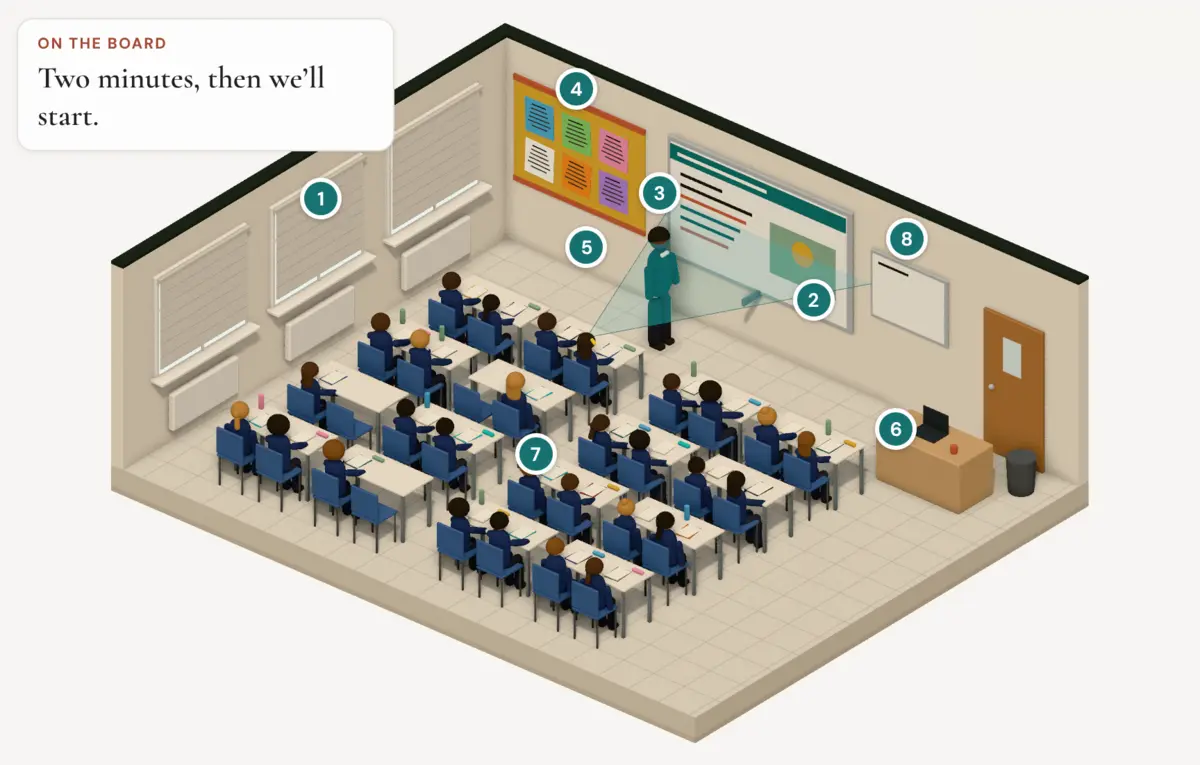
The same classroom with all eight changes made: blinds down, a clear board, the teacher in plain dark clothes, the wall around the board cleared, and Ava at the front facing the board. Every numbered mark is filled.
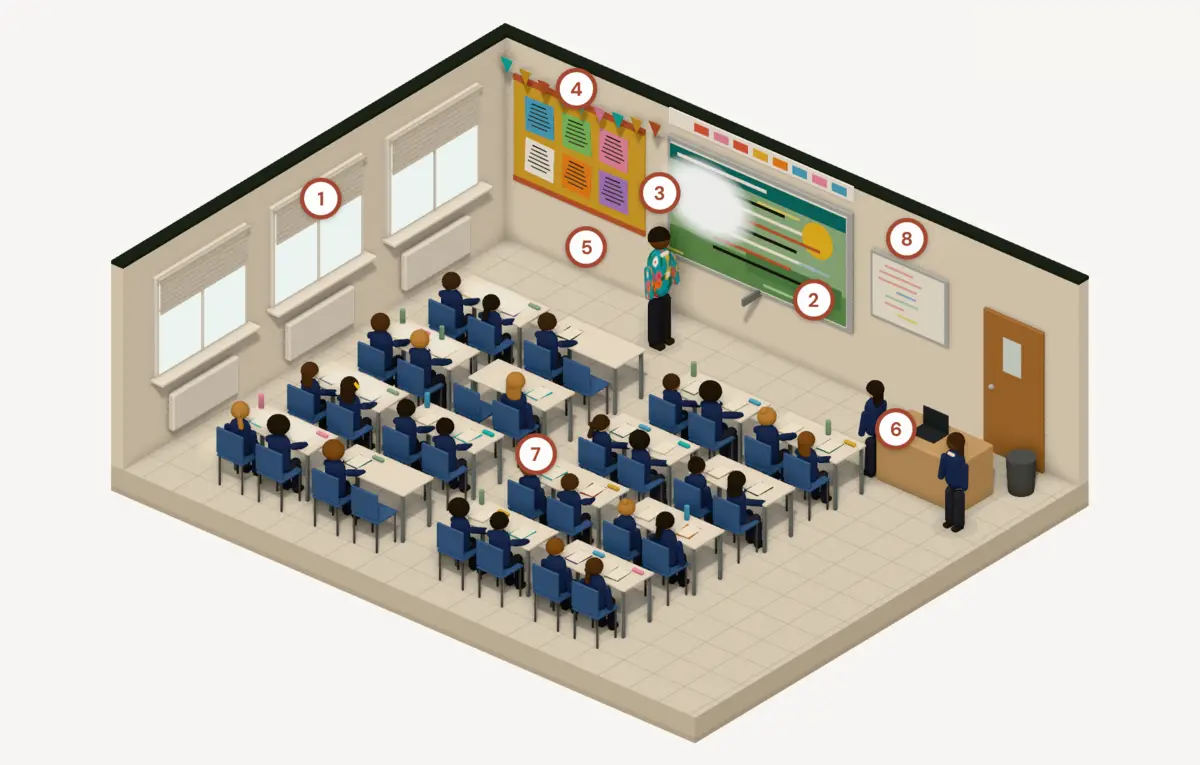
The classroom as it is: sun glaring off the board, writing over a picture, the teacher in a bright patterned shirt, bunting and displays round the board. Eight hollow numbered marks show where changes can be made.

Eight changes for a classroom, each spelled out

  1. Blinds down on the sunny side
  2. A clear board
  3. Plain, dark clothes at the board
  4. Clear the wall around the board
  5. A seat at the front, facing the board
  6. Bins and sharpeners at the start and end
  7. Talk at set times
  8. One calm warning instead of hurry-ups

Each number sits where its change happens in the room: hollow while the room still asks it, filled once it has changed. What changed was the room; nothing about the pupil changed.

QR code that opens this classroom in Vision in 5, with all eight changes made

Put the room in the report

Show mode prints a summary of the room and its changes, with a QR code that opens the same room. Paste it into your report, or leave it with the teacher.

Scan this one: it opens the classroom above, with all eight changes made. No account needed.

>_ Vision in 5

A staff course you can send to a school this afternoon.

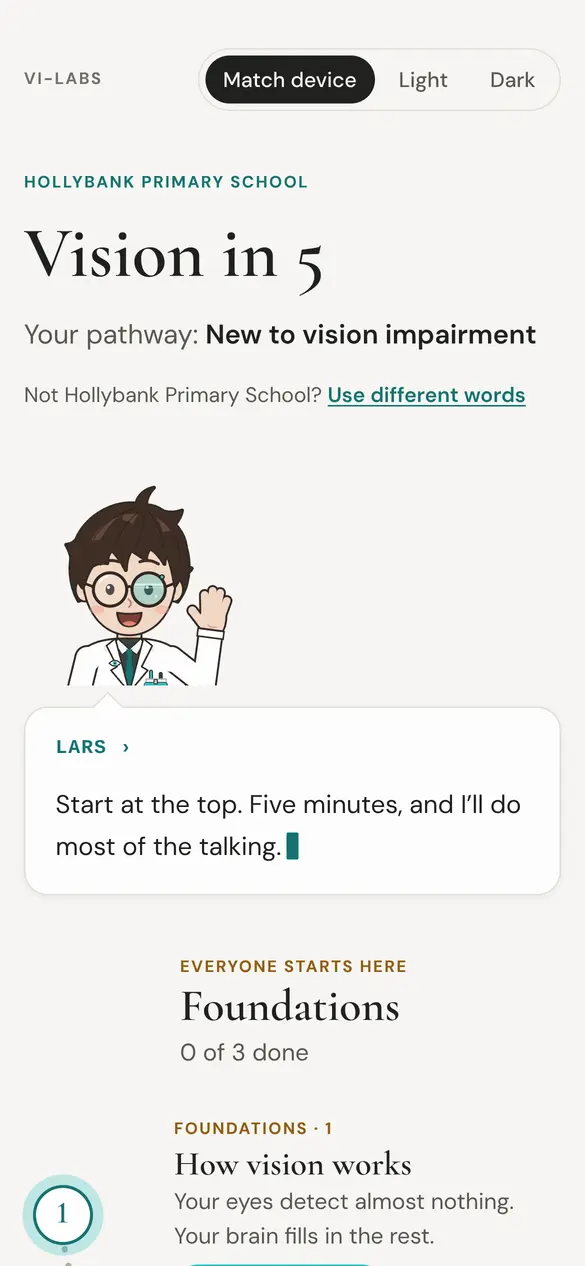
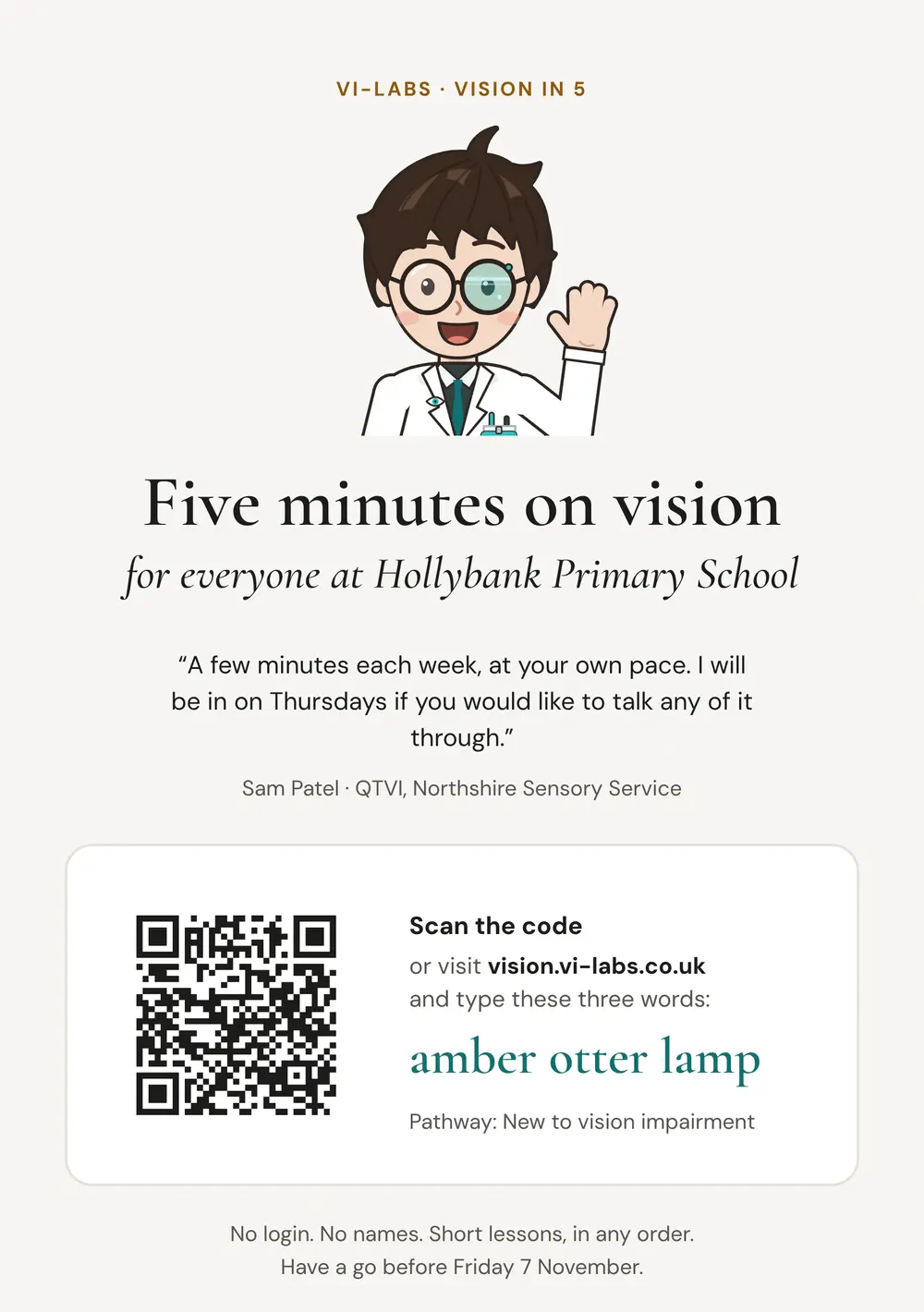
Give a school three words. Every teacher and teaching assistant can start on their phone tomorrow: five-minute lessons, no login and no names, with a CPD record at the end of each one. You see how it’s going across all your schools.

  1. You send three words

    Set up a school, choose a pathway and add a line from you. VI-Labs makes the staffroom invitation: A5, ready to print or email, with a QR code.

    The invitation for Hollybank Primary School: Five minutes on vision, a message from Sam Patel, the QR code and the words amber otter lamp.
  2. Staff learn in five minutes

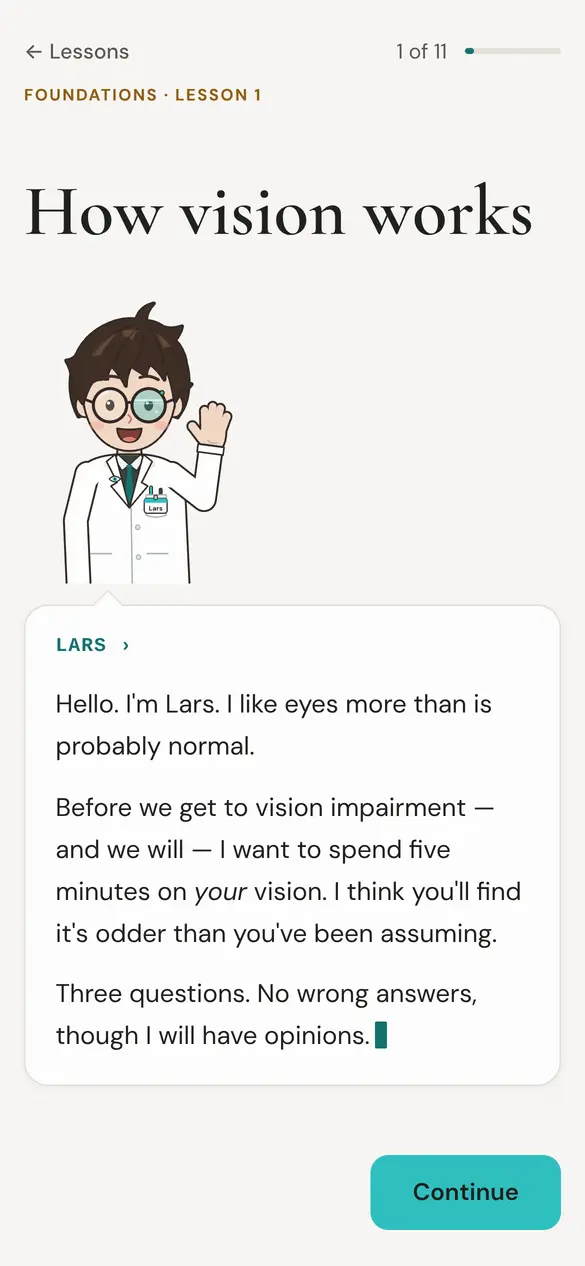
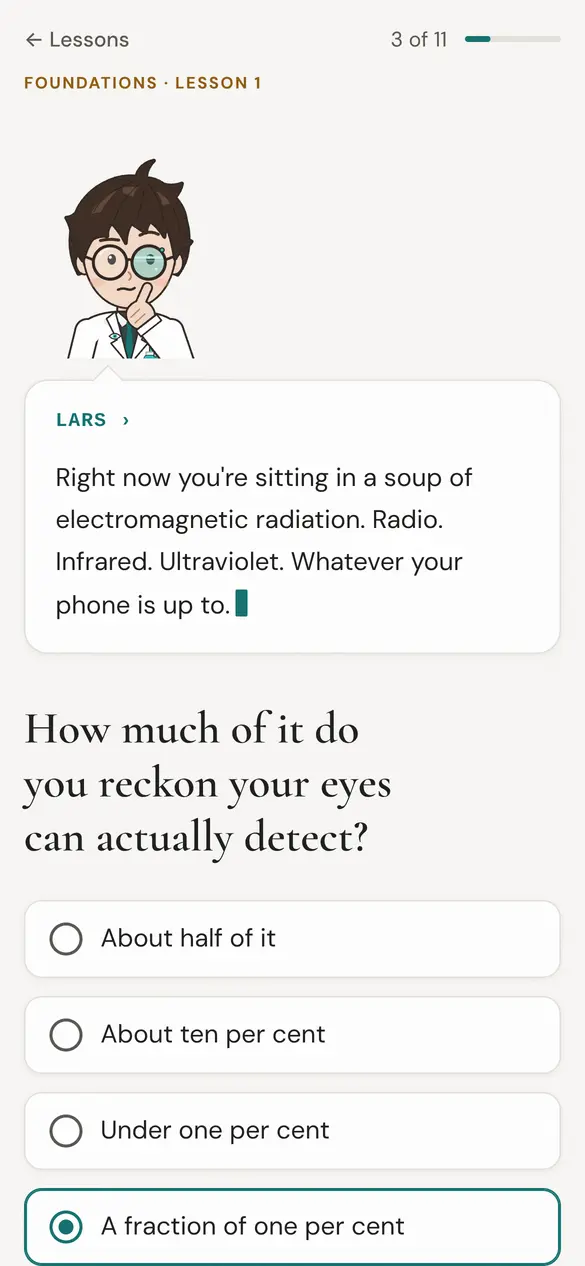
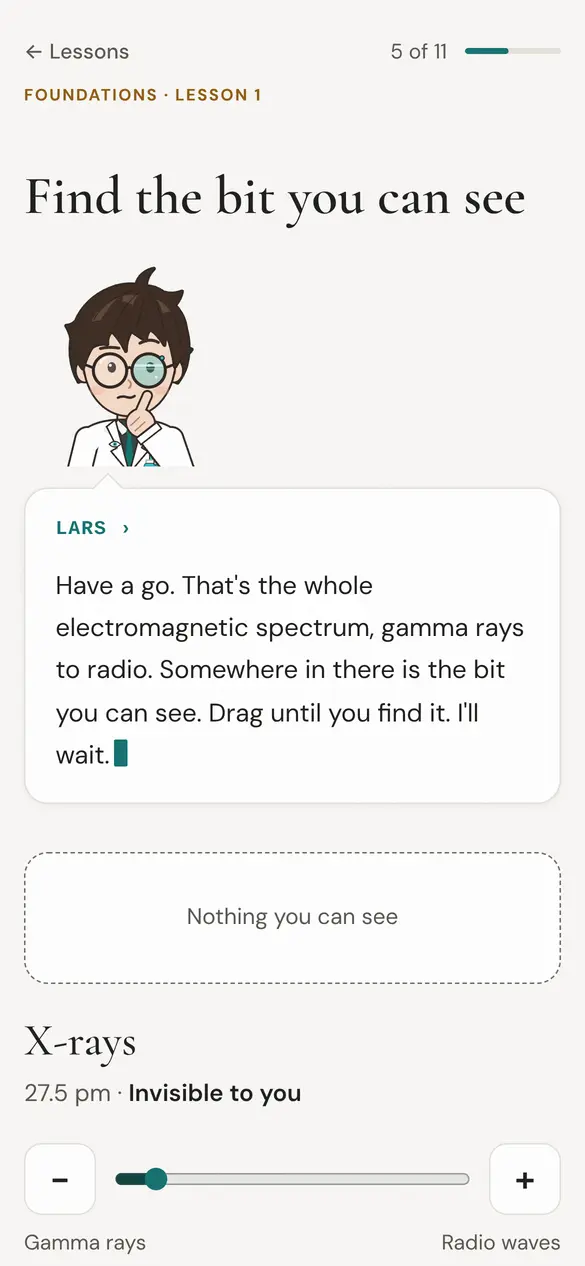
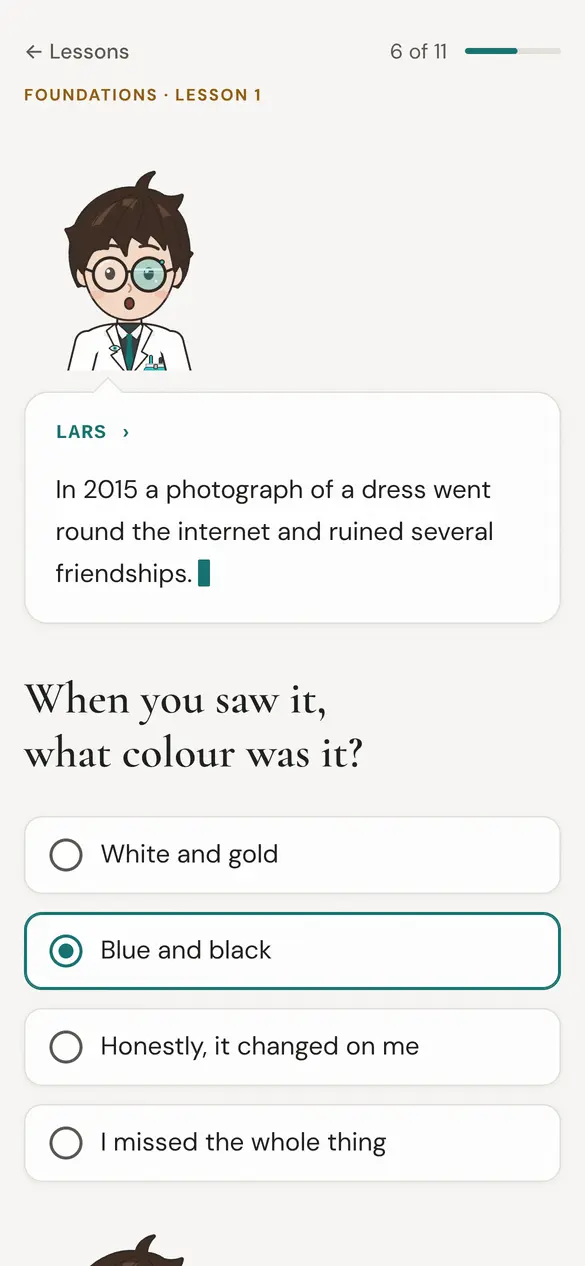
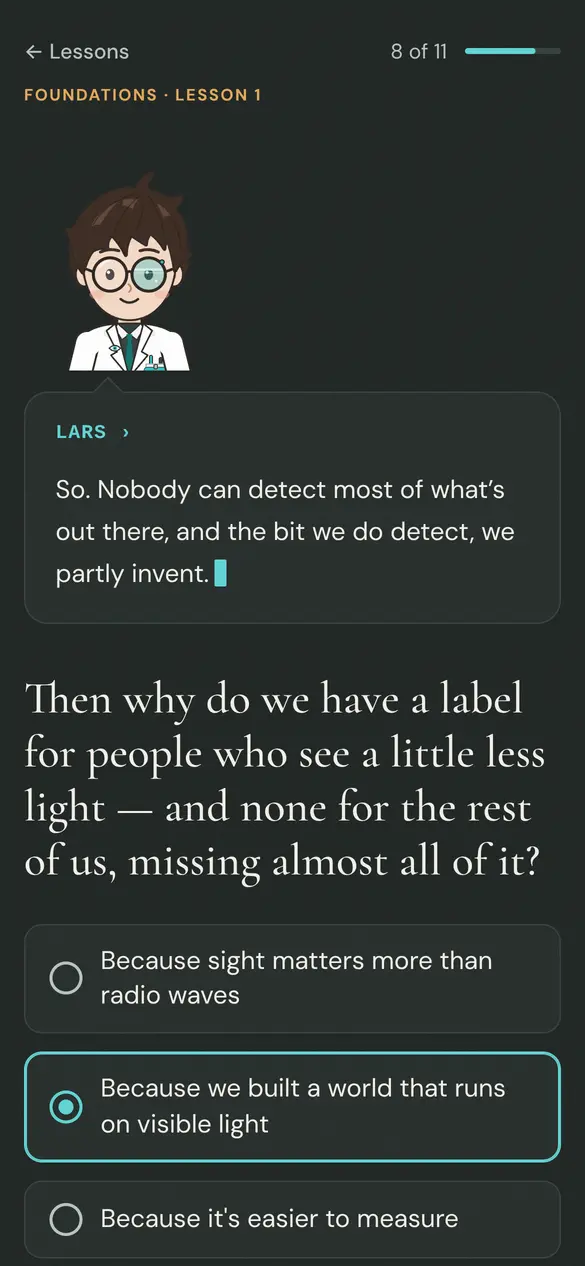
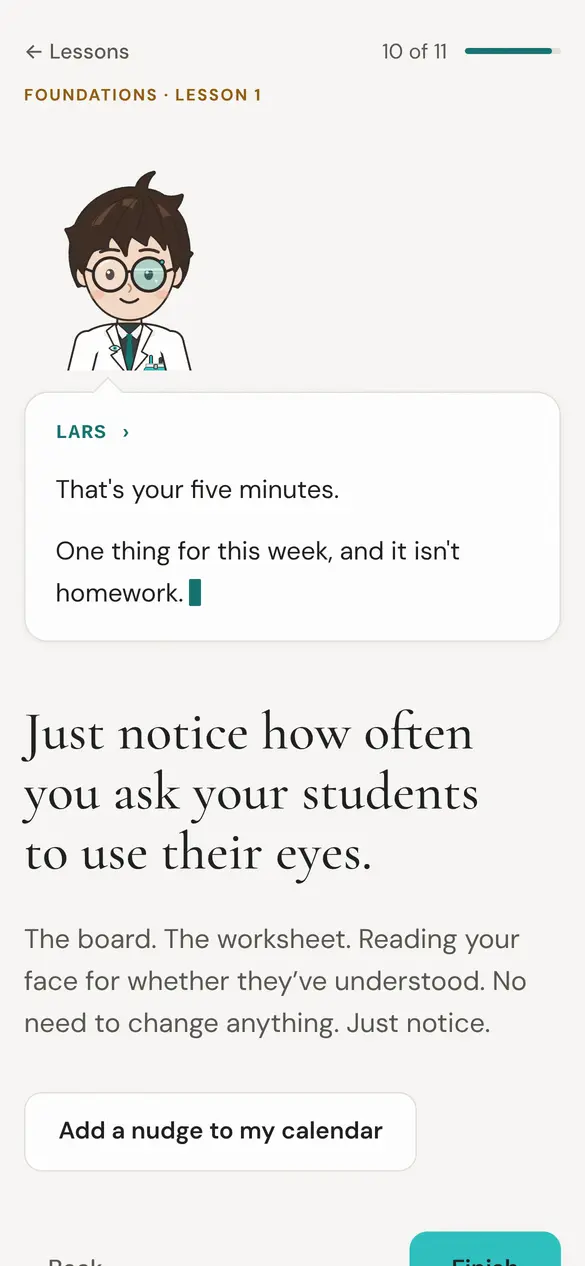
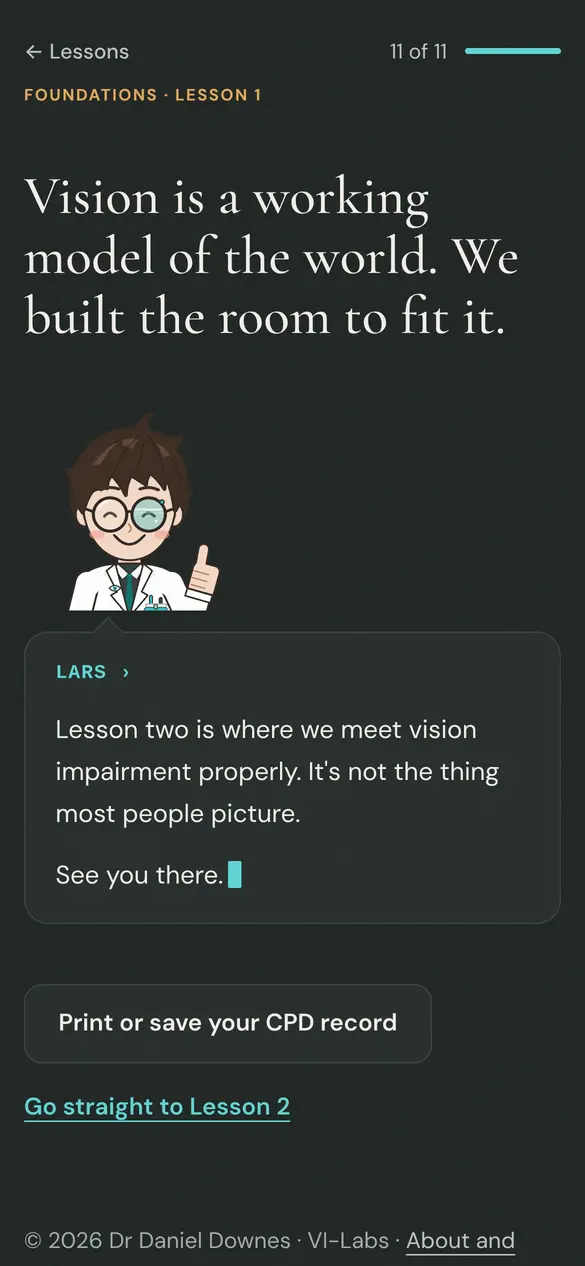
    Lars, the course’s guide, explains how sight works. Every screen asks them to do something. Step through Lesson 1, as a teacher sees it:

    Screen 1 of 8. The school’s link opens the course. Lessons are recommended in order, never locked.

    The school’s link opens the course. Lessons are recommended in order, never locked.

  3. You see it working

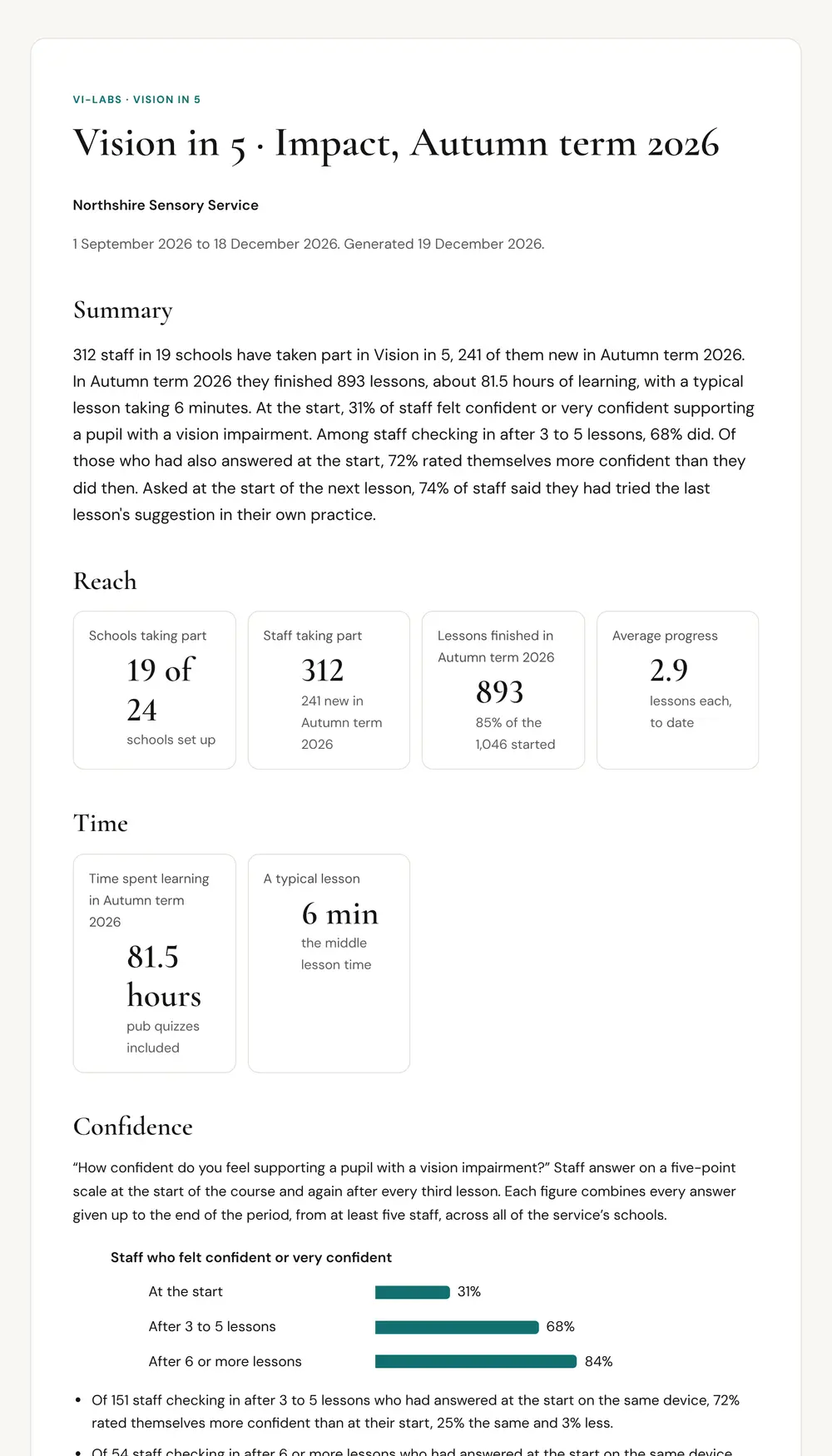
    An impact report for your whole service, by term or year: staff taking part, lessons finished, time spent, and how confidence changes. Print it, paste its summary, or download the figures.

    Impact report for Northshire Sensory Service, Autumn term 2026: a summary paragraph, then tiles for schools taking part, staff, lessons finished and average progress.Sample figures
  • 11 lessons and a pub quiz
  • Foundations · In the classroom · Vision in the environment
  • Pathways for each school
  • No login · No names
  • A CPD record for every lesson

>_ Made by a QTVI. Shaped by QTVIs.

Every tool here started as a question from practice.

The Community Lab is where QTVIs talk through casework, share what works, and decide what gets built next. A service subscription covers every QTVI, and Vision in 5 for every school you support.

Found this yourself?

Most services start when one QTVI shows their manager. Send them a short note with the link.

>_ On the bench now

  • In review

    Moments

    Find the small extra costs of seeing something a pupil can see, and the changes that take them away.

  • Next

    A paragraph bank

    Report paragraphs by section, written from what the room asks, to copy straight into Word.

  • After that

    One report, one download

    Pick the figures and paragraphs a report needs, and download it whole in your service’s template.